Showing posts with label Pentaho CDA. Show all posts

Monday, July 12, 2010

Joining and appending output datasets with CompoundDataAccess

An interesting topic about CDA is the ability apply join and union constructs to our incoming dataset using a  CompoundDataAccess element. This definition is a sort of extension of the DataAccess element and through a type attribute gives us the ability to join or append two given DataAccess datasets outputs forming a new one.

How does CompoundDataAccess works internally

It is really interesting to have a look at the sources and see how the things really works:
  • when you want to join the two DataAccess outputs CDA builds a little Kettle transformations and uses the Merge Join step two do the required join operation
  • if you want to append the two DataAccess outputs CDA very easily appends by itself the two datasets following the order you specified in configuration file.

Remember that in either cases you can apply this operations considering only two datasets at the time for each CompoundDataAccess element definition.

CompoundDataAccess basics

To define a new CompoundDataAccess element you have to mandatory specify
  • an id attribute, to externally identify this DataAccess elemement
  • a type attribute that accepts two values union or join following the type of composition you're looking for.
Because CompoundDataAccess is only an extension of the DataAccess element, we can apply the Parameter, Columns, CalculatedColumns and Output elements following the same rules specified for DataAccess in my previous post here

Moreover, because the CompundDataAccess element works on resulting DataAccess datasets we have to preliminarily define the two needed DataAccess. It is not possible (but would be a nice to have and I can think about implementing it) use DataAccess elements defined in external CDA files.

Joining datasets output
To join two datasets we have to define a CompoundDataAccess element with the type attribute valued to the join value. The join type lets you execute a FULL OUTER JOIN upon the two input datasets. Required elements are:

  • Left element definition, to specify a dataset for the left part of the join,
  • Right element definition,  to specify a dataset for the right part of the join.
Anyone of the two elements accepts the following attributes:

  1. id, is valued to the id of the DataAccess element definition you are going to consider as the left/right dataset
  2. key, is a comma separated list of elements to be considered as the join key. Remember that the columns keys are specified giving their position in the DataAccess query and not the name.

Below I give an example to fully understand this concept. Suppose we defined the following two DataAccess definitions in our CDA file

   <DataAccess id="1" connection="1" type="sql" access="private" cache="true" cacheDuration="300">  
                <Name>Sql Query on SampleData - Jdbc</Name>  
         <Query>  
                     select o.YEAR_ID, o.STATUS as status, sum(o.TOTALPRICE) as totalprice from orderfact o  
                     group by o.YEAR_ID, o.STATUS  
                </Query>  
                .  
                .  
                .  
                .  
   </DataAccess>  
   <DataAccess id="2" connection="1" type="sql" access="public" cache="true" cacheDuration="5">  
                <Name>Sql Query on SampleData</Name>  
        <Query>  
                     select o.YEAR_ID, o.status, sum(o.TOTALPRICE * 3) as tripleprice from orderfact o  
                     where o.STATUS = ${status} and o.ORDERDATE &gt; ${orderDate}  
                     group by o.YEAR_ID, o.STATUS  
                     order by o.YEAR_ID DESC, o.STATUS  
                </Query>  
                .  
                .  
                .  
   </DataAccess>  

and suppose in the same cda file we define this CompoundDataAccess element.

      <CompoundDataAccess id="3" type="join">  
           <Left id="1" keys="0,1"/>  
           <Right id="2" keys="0,1"/>  
           <Columns>  
                <CalculatedColumn>  
                     <Name>PriceDiff</Name>  
                     <Formula>=[TRIPLEPRICE]-[TOTALPRICE]</Formula>  
                </CalculatedColumn>  
           </Columns>  
               <Parameters>  
       <Parameter name="status" type="String" default="Shipped"/>  
       <Parameter name="orderDate" type="Date" pattern="yyyy-MM-dd" default="2003-03-01"/>  
     </Parameters>  
           <Output indexes="0,1,2,5,6"/>  
      </CompoundDataAccess>  

As you can see the CompoundDataAccess element has the two keys, Left and Right, two indicate the two sides of the join. The left one uses the DataAccess id 1 (the first one above) and the second the DataAcccess id 2. Then you see the comma separated list that defines the positions of the keys columns in the related DataAccess query. In this case you can see, looking at the related DataAcces queries, that either the elements uses YEAR_ID and the STATUS columns

Appending datasets ouputs
To append two datasets we have to define a CompoundDataAccess element with the type attribute valued to the union value.The union type lets you execute append two DataAcces output datasets giving their order using two configuration elements:
  • Top, to specify the first dataset,
  • Bottom,  to specify the second dataset.

Anyone of the two elements accepts the following attributes:
  1. id, is valued to the id of the DataAccess element definition you are going to consider as the Top/Bottom dataset
Below a sample of configuration using a compound union. The DataAccess elements considered for this sample are the same defined in the previous sample for the join type.

   <CompoundDataAccess id="3" type="union">  
     <Top id="2"/>  
     <Bottom id="1"/>  
     <Parameters>  
       <Parameter name="year" type="Numeric" default="2004"/>  
     </Parameters>  
   </CompoundDataAccess>  

Friday, July 9, 2010

CDA configuration files basics (part 2)

Last time we started talking about the basics of CDA configuration. Today we'll continue our series of articles on CDA better at DataAccess element configuration.

A little ricap

CDA is a BI Platform plugin that that allows to fetch data in various formats. It works defining a configuration file where we will define connections to our available datasources and a number of data access objects. The data access objects defines the strategy used to access the data using a specified connection. In our previous post we talkes briefly about how to configure Connections a we give a brief overview about the DataAccess element. Today we will complete our introduction to the basics of  CDA DataAccess configuration.

Adding parameters to our DataAccess element

The Parameters element, nested into the DataAccess element, let you define a set of  parameters required to get the data from you connection. Every parameter is associated to a Parameter element which accepts at least the following attributes:

  • name, to specify the Parameter name.
  • type, lets you specify the Parameter type. Allowed types are String, Date, Integer, Numeric.
  • pattern, lets you specify a display pattern required to let the CDA better understand the parameter's value as inputted by the user. Samples of usage for this attribute are dates dates or numeric parameters.
  • default, lets you specify a default value for the parameter so that it will be automatically assigned every time we don't give that value

Below you've a sample about configuring a Parameters element

   <DataAccess id="1" connection="1" type="sql" access="public" cache="true" cacheDuration="300">  
                .  
                .  
                <Query>  
                     select o.YEAR_ID, o.STATUS, sum(o.TOTALPRICE) as price from orderfact o  
                     where o.STATUS = ${status} and o.ORDERDATE &gt; ${orderDate}  
                     group by o.YEAR_ID, o.STATUS  
                </Query>  
                .  
                .  
                <Columns>  
                     <Column idx="0">  
                          <Name>Year</Name>  
                     </Column>  
                     <CalculatedColumn>  
                          <Name>PriceInK</Name>  
                          <Formula>=[PRICE]/1000000</Formula>  
                     </CalculatedColumn>  
                </Columns>  
                .  
                .  
    <!-- Output controls what is outputed and by what order. Defaults to everything -->  
    <Output indexes="1,0,2,3"/>  
    .  
    .  
   </DataAccess>  

For your reference I've also shown you the query definition. Look at the Columns element declaration: you can see that we're going to rename the column with ordinal 0 from "YEAR_ID" to "Year". To do that we used a Column element where we set the new name.
Then, using the CalculatedColumn element, we added a new calculated column name PriceInK.
Consider that:
  • New calculated columns are always added at the end of the columns set
  • CDA uses Pentaho reporting libraries to apply formulas so that means you need to identify streams columns in your formula using square bracket notation and that you can use all the construct found in that libraries.
    Last but not least we changed the positional layout of the output columns through with an Output element. In the indexes attributes we set the columns position using column indexes. You have two consider two things here

    • The total columns number is 4 because 3 came from the query and one was the calculated column lastly added to the stream
    • The index for the first leftmost column is 0 and NOT 1


      Wednesday, April 21, 2010

      CDA configuration files basics (part 1)

      Last time I give a brief explanation about the basics of CDA compilation and deployment and I showed you how to start executing a simple query on our datamart using CDA getting  back a resultset formatted as you expected. I decided to take you to a fully functional sample going through a set of explanatory steps summarized below:
      • Explain the structure of CDA files and learn how to built a new one
      • Show the basic verbs you can use to interact with CDA
      • Put everything together with a working example
      Before start playing with CDA remember to get the latest CDA sources compile it and reinstall the plugin as explained in my first post on this blog.

      CDA files has a very basic structure. They are very easy to be learned also by a novice user with a basic knowledge of XML. Basically a CDA file contains definitions for some important elements
      1. datasources
      2. data access
      3. compound data access

      The DataSource element

      Datasources in CDA have the usual meaning of a named connection to a database server. The name (in our case the connection id) is commonly used when creating a query to the database.

      Each DataSource is made up by a set of connections defined as follow:
      • has an id attribute to uniquely identify the connection in this CDA datasource definition. Of course we cannot have two connections with the same id.
      • has a type attribute whose value depends on the connection type. We've different connection types one for each datasource type: sql, mondrian, Pentaho Metadata (MQL), Olap4J
      • a set of other elements that differs depending on the connection type
      We can have 1 or more connections in the DataSource element according to your needs.
        Configuring connections to relational sources 


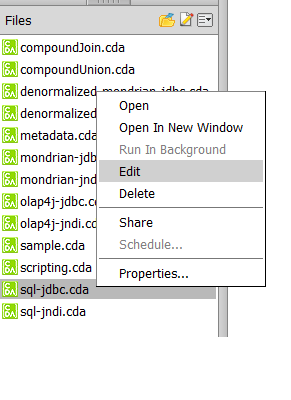
        If we look at the samples that comes together with the latest CDA distribution you have a sample for each of the possible connection types. Open PUC console and go to the folder bi-developer/cda/cdafile and you have the list of cda definitions shown below in the files window. As you can see every CDA file is identified by a specific icon.

        First interesting point: to open a file we've a CDA files editor integrated in Pentaho console. Cool! So to open a CDA file select it, right click on the file name and select Edit


        Let's have a look at how to connect to a relational datasource. We've two samples for that. One to connect through jdbc and another to connect through a JNDI datasource. Open the sql-jdbc.cda for example (the jdbc one). As you can see, in the right area of PUC console the editor opened and shows you the file content. CDA editor is the standard tool to modify  CDA files in a quick and easy way. You can modify your file, save it and also test it using the preview functionality (we'll talk about it later). Looking at the file immediately after the CDADescriptor element you'll find the DataSource element and, as its child, the connection definitions.


        As you can see you can find a connection with id="1" and type="sql.jdbc" and then a set of elements describing properties that are directly related with the selected connection type (in this case the definition of a jdbc connection so we've elements for driver, url, username and password). Take your time to go through all the other samples and see the differences in connection types.

        The DataAccess element

        The DataAccess contains the definitions for the query that needs to be executed, the parameters the query accepts and some other side elements that we will explore in the next steps.

        A DataAccess element:
        • has an id
        • has a descriptive name (given through a child element), 
        • links a specific connection id defined in the previous DataSource section
        • contains a query element,
        • contains a set of given parameters (not mandatory),
        • contains a set of other not mandatory definitions will go thorugh in the next steps. 
        We can have one or more DataAccess elements in our CDA file.
        So go back to our example (sample-jdbc.cda) and continue our exploration.


        As you can see in the picture above we've some things to be noted:
        • Remember to give an id and to link the connection defined in the DataSources section 
        • Because we're writing text as value of an xml file element, remember the that comparison operators < > has to be written respectively as &lt; and &gt; otherwise you'll get an error.
        • Parameters has given a name. In the query you can indicate a parameters with the usual syntax ${<parameter_name>} where parameter_name is the exact name of the parameter we're going to apply in the where clause.
        • Every parameter has a type that, together with the name, needs to be mandatory given. Supperted types are: String, Date, Numeric and Integer. Any parameters can have a default value specified.
        • If the parameter's type is Date you can specify a pattern you followed for your date format.
        Test the query

        To test our DataAccess definition before moving foward with our implementaion click on the Preview button. When the Preview form appears you can select the DataAccess definition you want to test and see the results below on a nice looking table.

        Some things to note:
        • the previewer sets the default values for the query (if any) but you can change them accordingly to your needs, 
        • the date format for the orderDate parameter follows the pattern specified in the CDA file definition.

        Now I'll give you the time to play with the samples and experiment a bit. Next time we'll talk about the second part of the DataAccess elements and CompoundDataAccess definitions.

        Friday, March 19, 2010

        A first look into Pentaho CDA

        These days I decided to have a look into Pentaho CDA the newest idea from Pedro Alves. The project is available here on Google code. He gave announcement about this two months ago in his blog and immediately it appeared interesting.

        What is CDA?

        CDA is a BI Platform plugin that that allows to fetch data in various formats. The good things are that it allows you to acces data using all of the possible data sources you can use in BI Server (SQL, MDX, Metadata, Kettle etc.) and can be used by any client (internal or external to BI Server) because you can call it through a simple url and it gives you back a data stream.

        Let's go and compile the code

        So after some very busy days of hard work were I only had the opportunity to keep my local copy of the code updated with the repository and see what's going on, yesterday I had some time available and I was able to compile it and give it try. The framework easily compiles with the ant script you find in the source tree. The only thing you've to consider is to create a file named override.properties containing a set of definitions related to your working environment

          plugin.local.install.solutions.dir = <substitute_with_your_biserver_home>/pentaho-solutions   
          plugin.local.install.user = joe   
          plugin.local.install.pass = password   
        

        After having compiled the code successfully you can install it under your BI Server rel. 3.5.2 with the command

         ant install-plugin  
        

        The basics

        Immediately after our successfull compilation and installation we can start biserver and login into the system. Under the bi-developer solution you have a folder named CDA where you can find an extended set of examples to start playing with.

        CDA configuration is based on xml files. Every xml file contains a set of data access definitions. Everyone is identified by an id and has a specified data access method. I don't copy and paste a sample here because you can have a look in the samples by yourself. They are very simple and the format is immediately understandable so that you can easily edit them by hand.

        Basically you can have your output data stream in multiple formats. At the time of writing this article you can use JSON (the default), XML, Excel and CSV. This gives you the maximum flexibility on what you can do with that data.

        If you want to try to execute a query using a data access method defined in your .cda file you can use the following this sintax

        http://<biserver_host>:<port>/pentaho/content/cda/doQuery?solution=bi-developers&path=cda/cdafiles&file=sql-jndi.cda&outputType=xml&dataAccessId=1

        This calls the method doQuery to execute the query using the dataAccess with id 1 defined in sql-jndi.cda and located under the  solution bi-developers in folder cda/cdafiles giving you the output using XML. Try to execute it changing the output type and see what happens. Remember that if you don't specify an output type it will be JSON by default.

        Suppose that we wnat an output typ like xml, the answer you'll see in your browser window is something like this

        Shipped20044114929.96Shipped20051513074.46

        almost insignificant but, if you get the page source you clearly can see the xml stream sent to you by our CDA plugin

         <CdaExport>  
              <MetaData>  
                   <ColumnMetaData index="0" type="String" name="STATUS"/>  
                   <ColumnMetaData index="1" type="Numeric" name="Year"/>  
                   <ColumnMetaData index="2" type="Numeric" name="price"/>  
                   <ColumnMetaData index="3" type="String" name="PriceInK"/>  
              </MetaData>  
              <ResultSet>  
                   <Row>  
                        <Col>Shipped</Col>  
                        <Col>2004</Col>  
                        <Col>4114929.96</Col>  
                        <Col isNull="true"/>  
                   </Row>  
                   <Row>  
                        <Col>Shipped</Col>  
                        <Col>2005</Col>  
                        <Col>1513074.46</Col>  
                        <Col isNull="true"/>  
                   </Row>  
              </ResultSet>  
         </CdaExport>  
        

        Really cool! If you don't want to make your hand dirty in changing jdbc definitions I suggests you to try all the files whose name contains the word jndi that means they use a datasource and not a direct jdbc connection defined in the file (these are the files that contains the word jdbc).

        Read the next part of this serie and learn about CDA configuration files basics